CAS 360 allows you to customise the outgoing email address for all correspondence to your clients.
Using Amazon SES, we are able to update your sender email address to an email address that you have access to.
To do this, you will have to verify that you own this address. While not strictly required, we also highly recommend that you update your company's DNS records to alert other email destinations that you are using Amazon SES to send emails. If this last part is not done, there is a very strong likelihood that the emails will end up in people's Junk or Spam folders.
How do I do this?
| From the Main Toolbar, go to Settings |  |
| Select Email Settings |
|
At the top of the email settings screen, you will see the following:
Important: Only one email address is available per account. We recommend using your firm's general email address.
Billing
Because Amazon SES only allows for a limited number of email domains that we can add, there will be a one-off fee of £250 (inc GST). Billing will be processed through MYBGL. See the Purchasing the CAS 360 Custom Email via MyBGL section below for more information.
Get in quick! It will be first come first served.
Access
From within MyBGL, select the Products option on the left-hand side of the screen.
For more information on accessing MyBGL see MyBGL FAQ's.
How to purchase the Custom Email Feature
Select the Purchase New Features button next to your CAS 360 subscription.
MyBGL will now display your CAS 360 account details
Toggle for CAS 360 Custom Email and click
MyBGL will now display the billing amount
To proceed to the payment of the invoice, check the box agreeing to the terms and conditions, then select Go to Payment.
You will be redirected to the Payment Options screen. For further information on how to proceed with payment options, please refer to the MyBGL Billing article.
Once your email has been submitted, a verification email will be sent to the email address. Open this email and click the URL link to verify that you own this address:
Important
The link will expire 24 hours after your verification request
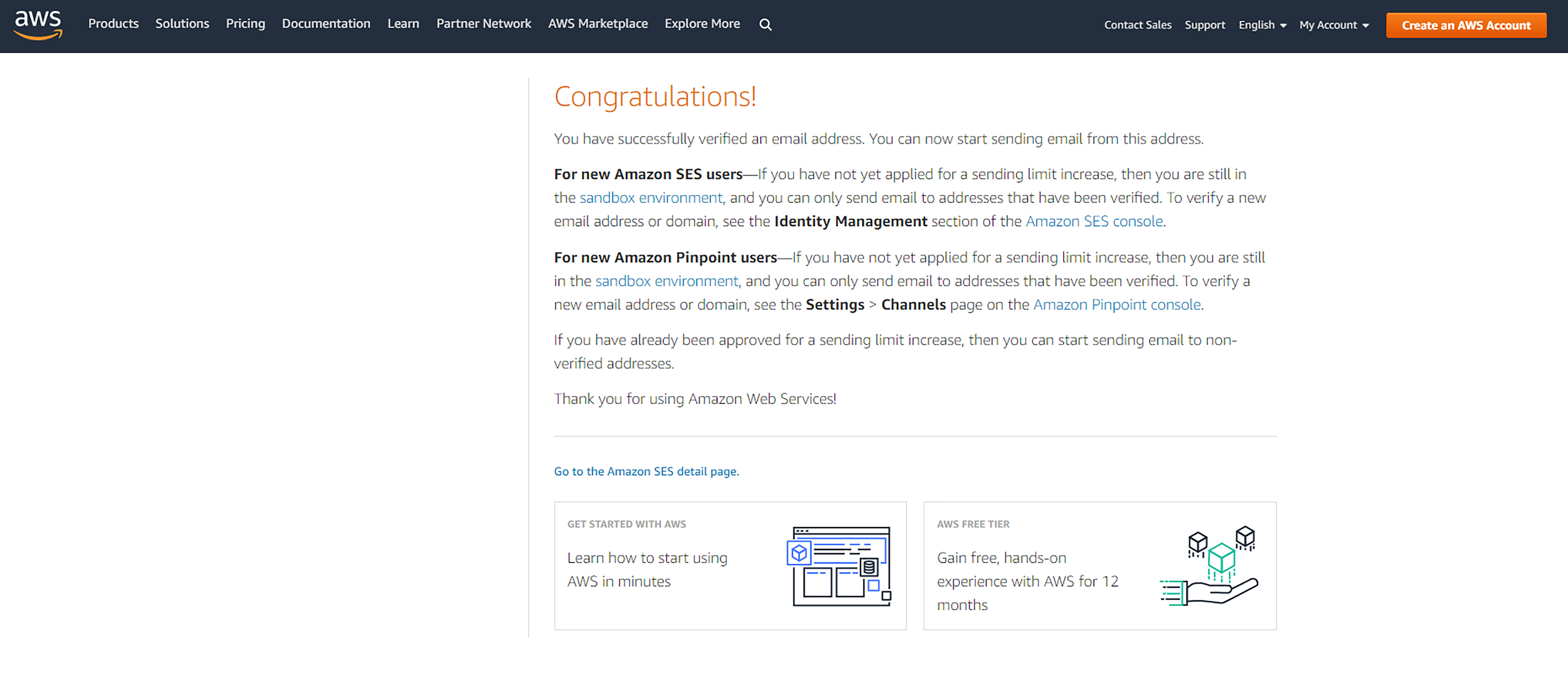
Once this is complete, head back to the Email Settings page in CAS 360
| From the Main Toolbar, go to Settings | |
| Select Email Settings |
|
You will now see the following:
| Click to confirm the email has been verified and approved and you have completed Purchasing the CAS 360 Custom Email via MyBGL. | |
| Click if you have made a mistake or want to change the email address. |
Sender Policy Framework (SPF)
Protect against phishing & prevent messages from being marked as spam
Use Sender Policy Framework (SPF) to help protect your domain against spoofing, and help prevent your outgoing messages from being marked as spam. SPF specifies the mail servers that are allowed to send email for your domain. Receiving mail servers use SPF to verify that incoming messages that appear to come from your domain were sent by servers authorized by you.
Without SPF, messages sent from your organization or domain are more likely to be marked as spam by receiving mail servers.
Check for SPF record:
To perform a quick check to see if you have an existing SPF record, enter your domain using this website: https://dmarcly.com/tools/spf-record-checker
You will see the following if you do have an SPF record:
The following will display if you do not have one:
Setting up SPF
Important
We recommend that you use your IT specialist to assist with setting up your SPF records.
-
If your domain already has an SPF record, you can add an include statement for Amazon SES by adding the following (SPF records can contain multiple include statements):
include:amazonses.com - If your domain does not already have an SPF record, add the DNS configuration for your domain as the following: v=spf1 include:amazonses.com~all
Setting up DMARC
To further improve email deliverability and monitor unauthenticated usage of your domain, we recommend adding a DMARC (Domain-based Message Authentication, Reporting & Conformance) record.
- Add the following DNS record:
(Type: TXT, Name: _dmarc.<domain>) with value "v=DMARC1; p=none;"
This configuration tells receiving mail servers to monitor emails from your domain but not take any enforcement action (i.e. no blocking or quarantining).
If you want to take a stricter approach, you can change the policy (p) from none to:
- p=quarantine: directs failing emails to recipients' junk/spam folder
- p=reject: blocks unauthenticated emails entirely
Note: Using quarantine or reject may affect delivery of CAS 360 emails if your domain's Return-Path is not aligned with the From envelope.
Obtain DKIM
To obtain the DKIM (DomainKeys Identified Mail), a custom email address must be already established.
Please select the 'Obtain DKIM'
After selecting 'Obtain DKIM' an Excel File will be downloaded onto your browser. Once the excel file has been downloaded, you will need to use the entries in the file and create DNS records accordingly.
Strict DMARC Policy
If your organisation enforces a strict DMARC policy, standard custom sender emails may be marked as spam. Ask us about our optional Custom Send From setup using a dedicated subdomain to improve deliverability.