Integrate with leading Electronic Signing solutions to automate the electronic signing of documents for your firm.
CAS 360 has partnered with the following Digital Signing Providers:
Setting up Digital Signing
If you are an Admin user, your user role settings will automatically be toggled on to access this feature. For other users, the following toggle can be found in the User Roles screen.
To complete the authentication process, ensure that the user role is active for digital signing.
Located under the Users and Integrations category, enable Digital Signing:
For more information on how to integrate with a Digital Signing provider, click below:
Document Production
With Digital Signing integrated, in the Document Production screen, additional options will be available.
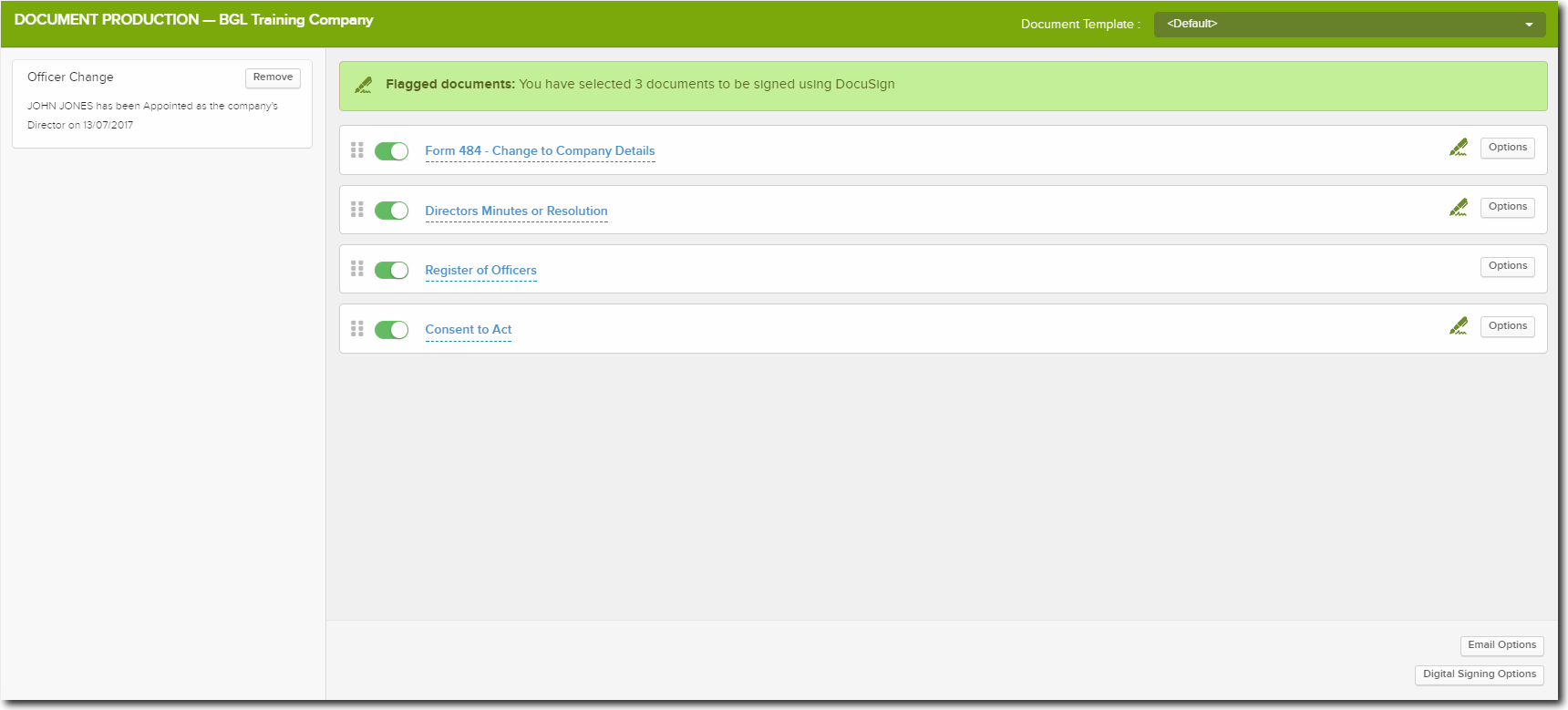
Next to any document that can be digitally signed, you will be able to see the Digital Signing icon.

Click on the icon next to a document to disable digitally signing for that document.

Ink signatures will then be required for the document.
A icon will also be available to allow you to view the signatories that have been selected for digital signing for each document.
1. Email signers completed signed document pack? |
Toggle The preparer will also receive the completed document pack via email. |
2. Use SMS as 2FA for signatories |
Toggle For more information, click here. |
3. Display all signers in the email |
Set the Toggle to Yes for all signees to appear on emails sent out related to the document produced. |
If you need to change the signatory for any of these documents, you can click on Options next to the document to select a different signatory.
The number of documents that have been flagged to be signed using Digital Signing will display at the top.
To send the documents to the selected signatories, select Send All.
Selecting Download All will only save the documents on your device and not send them to the signatories.
The CAS 360 outbox stores all outgoing email messages that have been sent from CAS 360. From the outbox, you will be able to view, resend and track the delivery of all emails forwarded from CAS 360.
See Email Outbox for more information.
What Documents are supported in CAS 360 for digital Signing?
- Company Change Summary
- Director Minute or Resolution
- Members Minute or Resolution
- Consent to Act
- Resignation Letter
- Members Consent
- Share Certificate
- Application for Shares
- Share Transfer Form
- Annual Return
- Solvency Resolution
Digitally Signing the Documents
Each signatory will receive an email to review and sign the document.
For instructions on how to digitally sign a document, please refer to the:
Notifications
A notification will pop up whenever a signatory has digitally signed a document.
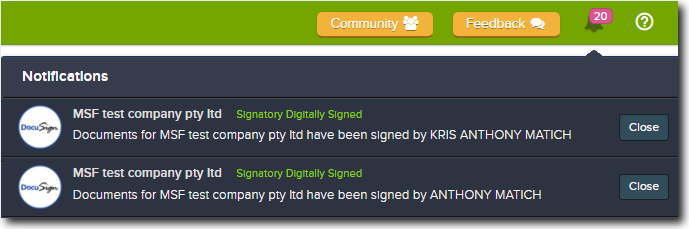
Once all the signatories have signed the document, you will receive another notification with a View and a Lodge option.
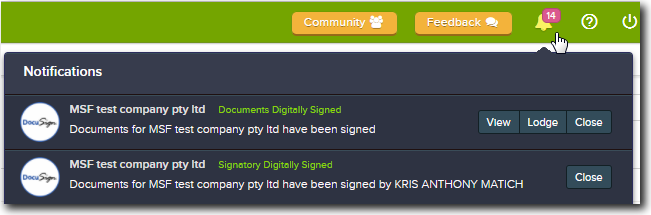
Users will also receive a message in the Email Inbox when documents have been digitally signed.

When selecting for the signers to receive the completed document pack under Electronic Signing Options prior to dispatch. Both the preparer and the recipients will receive a completed signed document pack via email.
Users also have the option to email or download a copy of the signed document once document signing is complete.
Documents screen
When a document is sent to be digitally signed, the status in the Documents screen will be set as per below depending on the signing provider:

Once all the signatories have digitally signed, it will change as per below depending on the signing provider:

Under Options | Attachments, you will have two copies of the document:
- The original PDFs that were emailed from CAS 360 and,
- The digitally signed documents as a PDF. The certificate of completion will also be attached.

Document Deadline and Digital Signing
In the Company screen, the Document Deadline Alert, will include the Digital Signing link
When the user clicks on send reminder, CAS 360 re-sends the whole pack as it was sent originally.
Users can also use the Document Deadline Alert to track the digital signing status.
| From company selection screen select the Document Deadline Alert. | 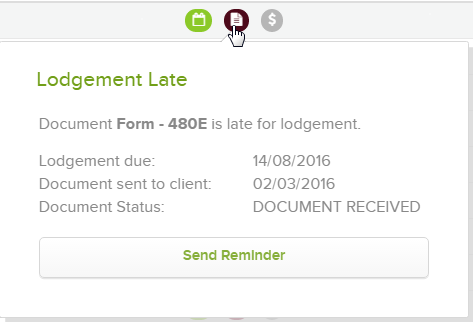 |
| Click Send Reminder |  |
Flag  besides the document to view which signatories have yet to digitally sign the document.
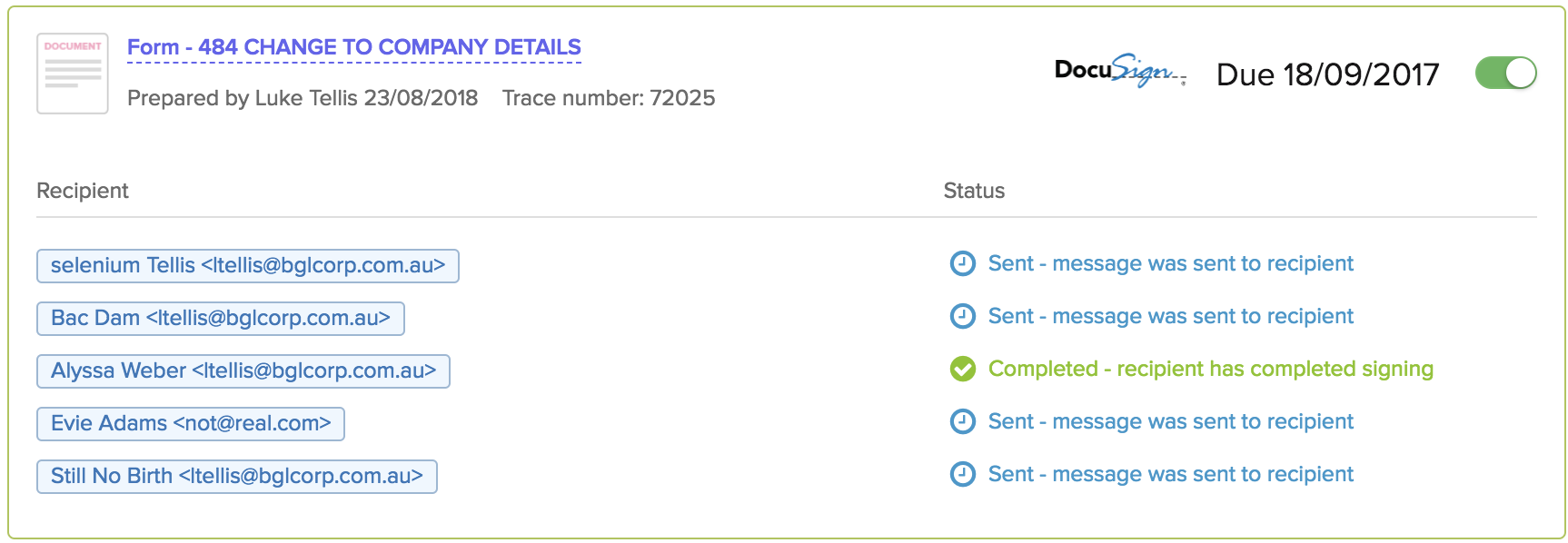
See Automated Document Reminders for full details on how these work.
Void Digital Signing Documents
Sent documents to a client with incorrect details? or perhaps the documents were sent to the wrong recipients altogether.
Don't fret, you can now void documents to be signed electronically, directly from the Global Documents Screen.
Select Options besides the document, and click Void.
Only applies to documents under the filter/status of Electronic Signing - Sent to clients
Enter the reason for voiding, and click Void Document
Note: Once voiding a document, this cannot be reverted.
The document will then be voided, which will prevent the recipients of the document from signing.
Frequently Asked Questions
BGL does not charge for the integration. However, your firm will need a Docusign, AdobeSign or FuseSign subscription.
3. How to add an email address in CAS 360?
Check out the CAS 360 Help on how to Add an email address to an existing contact
4. Can you delete a signed document?
Documents Signed electronically can be deleted from CAS360.
In the Documents screen, besides the document click options and select delete.
Documents deleted from the documents screen cannot be restored.
5. How are joint contacts in CAS 360 handled when digitally signing?
Joint contacts in CAS 360 are able to digitally sign by having each representative of the joint contact required to sign a form.
For more information on creating a joint contact, please refer to How to create a joint member
6. Can a firm use multiple Digital Signing Providers at the same time?
Yes, CAS 360 supports integration with multiple digital signing providers..
7. Are the placeholders automatically created by BGL?
For documents created by CAS 360 or Simple Fund 360, all placeholders will be automatically inserted for you.
8. Does the client need to be subscribed to a digital signing provider to sign a document?
No, the signatory is verified using the unique link in the email.
9. Do the signed documents only come back to CAS 360 once all parties have signed?
Yes, the signed document will be stored in CAS 360 and you will receive a notification
10. Can you add signing fields to additional uploaded documents?
Documents in CAS 360 and Simple Fund 360 already contain placeholders for signatories. For additional documents, you will need to upload these directly onto the Digital Signing Provider's website.