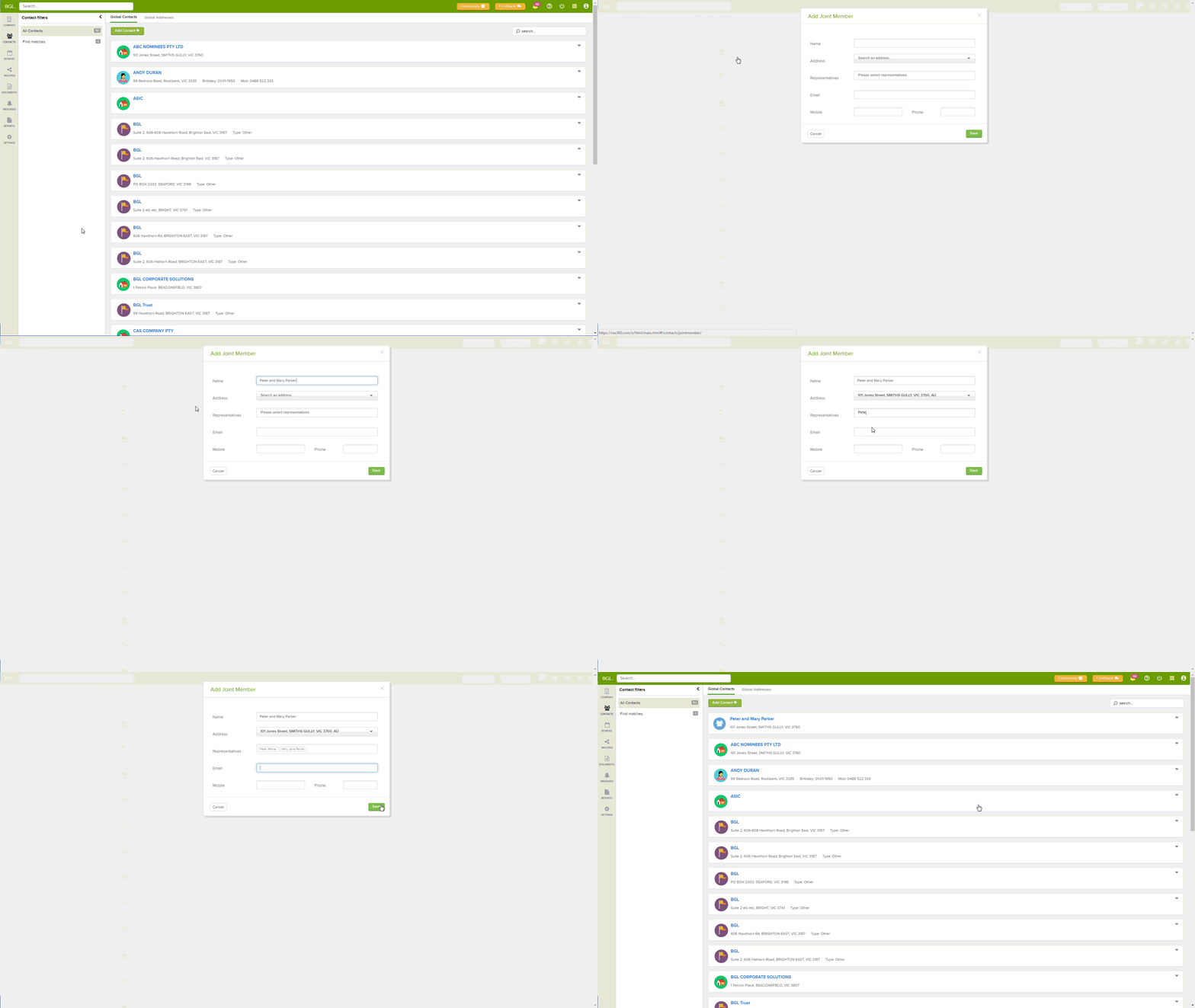
Details.
Shares are not always held by a single entity. Two or more people are able to jointly hold shares in a company. When two or more people jointly hold shares, they are referred to as a Joint Member. This article outlines how to create a joint member in CAS 360.
Once a Joint Member is created, users can process Shareholder Changes to the Joint Member.
Navigation
| From the Main Toolbar, go to Contacts |  |
Select 
Instructions
Select Joint Member.
CAS 360 will display the Add/Edit Join Member screen.
Name |
Input a name for the joint member. This name will appear on the Company Registers and minutes. |
| Address |
In the Address field, begin typing the new Address. CAS 360 will begin searching the Global Address screen for the Address. If the Address has not been previously added to the Global addresses screen, Click |
| Representatives |
Select the contacts to make up the joint member. The individuals must be added to the Global Contacts screen first before the joint member can be created. Up to 10 representatives can be added to a joint member. |
| An email address for the joint member. | |
| Mobile | A mobile number for the joint member. |
| Phone | A telephone number for the joint member. |
 will appear.
Click Save to add the Joint Member.
